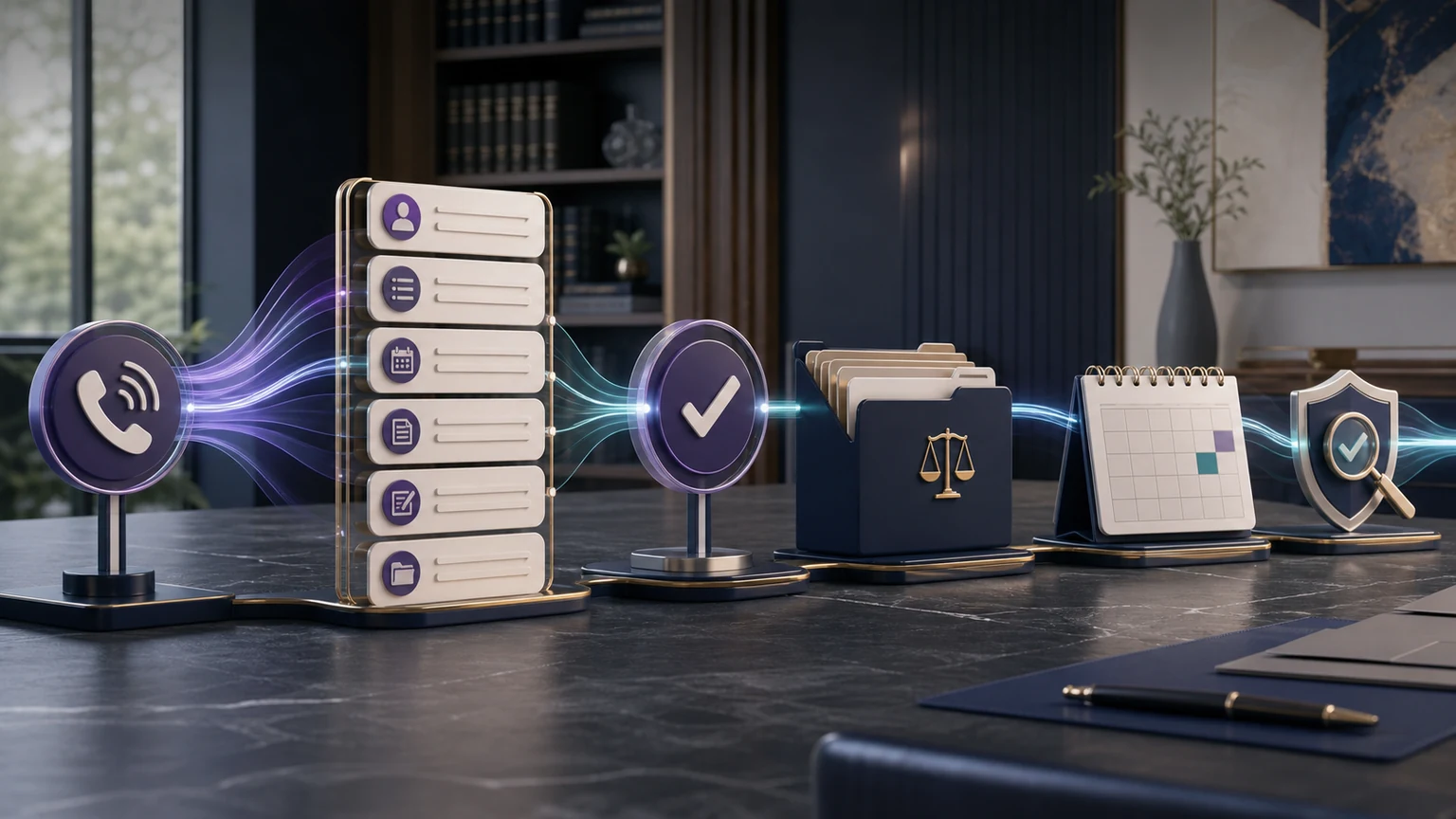
The TeleWizard Clio integration connects reception and intake with the records your team uses after a call. Clio’s App Directory lists contacts, notes, call logging, calendar scheduling, and task assignment. This guide turns those published capabilities into a field map and a set of checks for your configuration.
Clio Grow and Clio Manage serve different parts of a firm’s workflow. Confirm the product, permissions, destination record, and enabled action for each requirement before enabling production calls.
View the TeleWizard listing in Clio’s App Directory.

Map TeleWizard Clio Integration Fields and Actions Deliberately
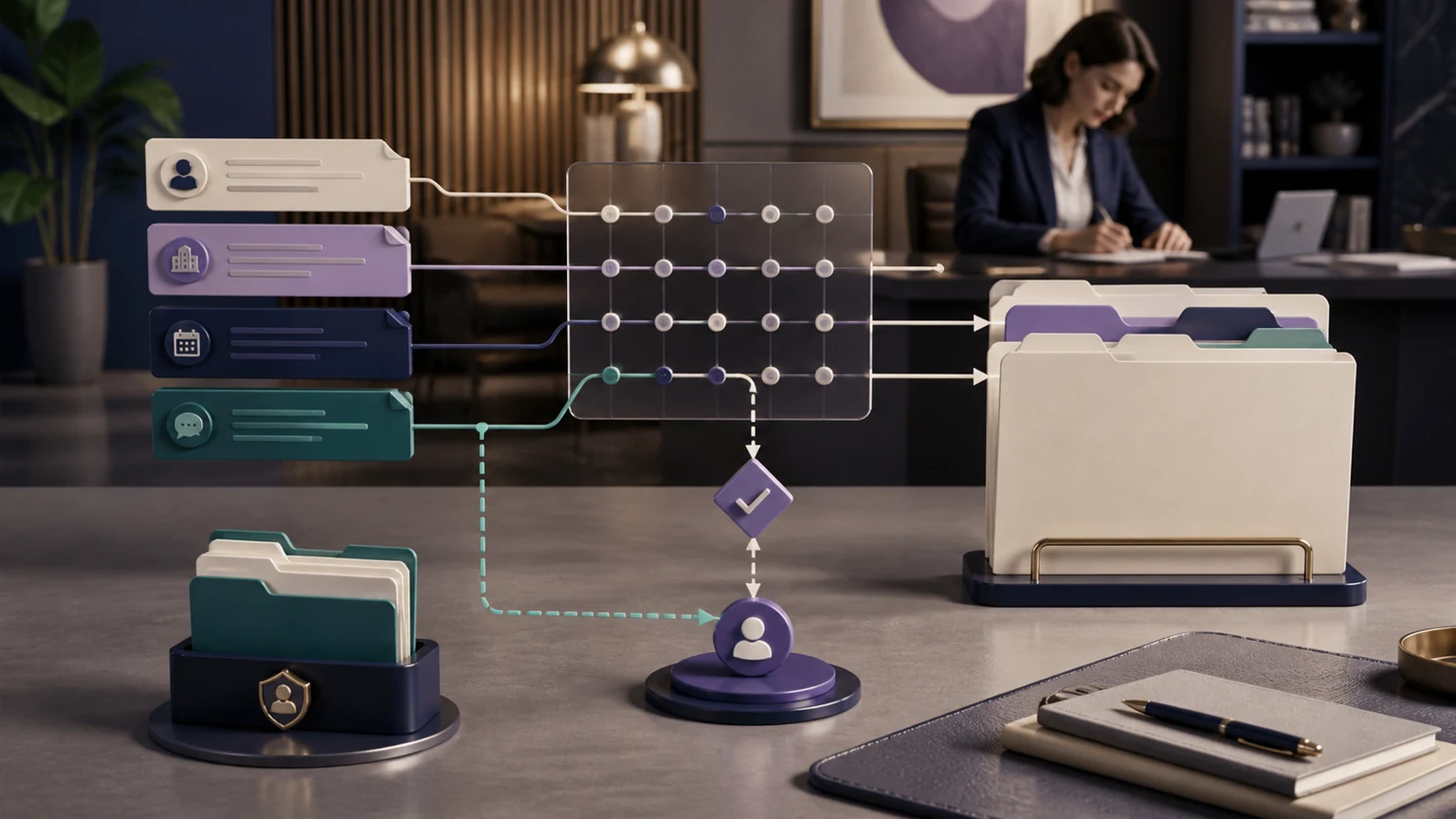
The TeleWizard Clio integration should write only what the approved workflow needs. For each branch, specify the target record, required fields, note format, source label, owner, appointment type, task, and disposition. Decide how names, phone numbers, email addresses, jurisdictions, practice areas, referral sources, urgency, and consent information are normalized.
Duplicate handling deserves its own rule. A repeat prospect or existing client should not automatically become another contact merely because a phone number was formatted differently. Define matching signals, what TeleWizard may update, and when ambiguity should create a review task instead of an automatic merge. Staff should be able to see what happened without reconstructing the call from scratch.
| Event | Data to map | Configured action to verify | Failure behavior |
|---|---|---|---|
| First eligible inquiry | Identity, contact, source, caller type, matter path | Create or update the appropriate contact and start the approved record path | Preserve captured data and alert the owner rather than silently dropping it |
| Completed intake | Required answers, missing fields, disclosures, outcome | Add structured intake information and an understandable summary | Mark the exception and create review work when required data cannot be written |
| Qualified booking | Appointment type, attorney or team, time zone, date, confirmation | Book against approved availability and log the result | Offer the configured alternative or callback path when no valid slot exists |
| Transfer or escalation | Reason, urgency, destination, attempt, result, fallback | Transfer with context and record the final outcome | Trigger the tested retry, priority task, or alert when the destination is unavailable |
| After-call work | Summary, disposition, next step, owner, due date | Add the enabled note, call log, task, or follow-up action | Surface failed writes for human correction and later root-cause review |
Authorize Access Without Sharing a Clio Password
Clio’s developer documentation states that the Clio Manage API uses OAuth 2.0. A Clio user is sent to Clio’s authorization screen, approves the application, and Clio issues an access token representing that user. The firm does not hand its ordinary Clio password to the integration. Follow current managed onboarding instructions because screens and authorization details can change.
Clio documents two authorization layers: the application’s access permissions, also called OAuth scopes, and the authorizing user’s Clio role. The application developer selects its requested scopes; the user sees that list during authorization and can approve or decline it. Scopes can be read-only or read/write, while the user’s role can further restrict the data and actions available. Confirm that the requested scopes and the selected user’s role fit the approved intake workflow rather than authorizing broader access than the work requires. Clio also states that changed scopes require reauthorization and that a user can revoke an application from Clio Manage.
Document the owner of the Clio connection, the TeleWizard workflow owner, the legal or compliance reviewer, and the person responsible for failed writes. A small firm may assign several roles to one person, but the responsibilities should still be explicit.
Map Each Caller to the Correct Path
Not every call belongs in a new-client funnel. TeleWizard can distinguish prospective clients, existing clients, courts, opposing counsel, vendors, referral sources, job seekers, and general inquiries, then follow the appropriate firm-approved workflow. This prevents existing clients from being forced through lead intake and keeps administrative calls from distorting marketing reports.
| Caller path | Conversation objective | Possible configured Clio outcome | Human boundary |
|---|---|---|---|
| New prospect | Complete practice-specific intake and identify the approved next step. | Create or update contact, log intake and call details, add notes, schedule, or assign follow-up. | Attorney or authorized staff controls conflicts, legal advice, and representation. |
| Existing client | Verify identity and capture or route a permitted request. | Add an approved note, call log, or task to the appropriate configured record. | No sensitive disclosure beyond verification, authorization, and firm policy. |
| Court, counsel, vendor, or referral source | Recognize purpose, capture essential context, and route correctly. | Log call context or create a task for the designated owner when configured. | No independent response on legal substance or confidential matter information. |
| Urgent or uncertain scenario | Collect minimum useful context and apply the approved escalation path. | Priority task, note, transfer result, or fallback alert. | A person handles legal judgment, threats, emergencies, and exceptions outside scope. |
Configure Consultation Booking and Handoffs
Scheduling works only when the calendar mirrors the firm’s business rules. Map appointment types, attorneys or teams, practice areas, jurisdictions, consultation length, buffers, time zones, office hours, paid-consultation requirements, required fields, and how far ahead a caller may book. Specify whether TeleWizard may reschedule or cancel and what it should do when the correct calendar has no availability.
A booking confirmation should state the date, time zone, format or location, preparation instructions, and cancellation method. It should also avoid implying representation. When a warm transfer is appropriate, define eligible caller types, destination, coverage hours, the introduction, retry logic, and fallback. A transfer attempt is not successful merely because the integration initiated it.
Test the unavailable path: close the calendar, decline the transfer, and temporarily disable the target action. Confirm the caller receives an accurate next step and the team receives enough context to recover.
Validate Direct Booking and Clio Writeback Before Launch
The current official Clio App Directory identifies TeleWizard for Clio Grow and Clio Manage and describes intake, contact creation or update, notes, call logging, consultation scheduling, warm transfers, tasks, and AI Supervisor analysis. Grow and Manage serve different parts of the legal workflow, so the firm should identify the exact target for every record and action instead of using “Clio” as one undifferentiated destination. The installed product, subscription, permissions, fields, calendars, and connector configuration control what is available.
| QA gate | Expected caller result | Clio evidence | Failure behavior |
|---|---|---|---|
| Eligibility and appointment type | Only an approved prospect receives the correct consultation option | Correct type, user/team, duration, office, source, and required fields | No booking claim; preserve intake and assign the approved alternative |
| Availability and time zone | Offered time, zone, format/location, fee, and preparation are accurate | Confirmed calendar event with the intended attendee and notification | Blocked or rejected slot produces no duplicate or false confirmation |
| Grow/Manage destination | Caller is not exposed to internal-system ambiguity | Contact, lead/intake context, notes, matter context, task, and call details land in the approved product and record | Unexpected destination becomes a stopped test and owned mapping defect |
| Correction, duplicate, or timeout | Correction is acknowledged and the caller receives an accurate next step | Final value is preserved; prior success is checked before retry; no unsafe merge | Captured data, alert, owner, safe retry, and closure evidence remain visible |
Customer perspective: “Since implementing TeleWizard, our calls are answered instantly and clients are booked directly into Clio Manage without delays.”
— Bonnie Ewing, Founding Attorney, Bonnie Ewing Law, as published on TeleWizard’s official website. This is her reported experience, not a universal latency, uptime, booking-rate, conversion, or time-saved guarantee.
Ewing’s experience supports the value of joining reception and booking in one managed workflow. It does not replace the firm’s own target-account tests. Run a qualified prospect, non-fit inquiry, returning caller, full calendar, corrected answer, rejected write, timeout, reschedule, and cancellation before launch. For Lawmatics workflows, use the Lawmatics integration testing guide and validate the firm’s records and actions in that platform.
Test the TeleWizard Clio Integration, Edge Cases, and Fallbacks
A happy-path demo proves only that one script works under ideal conditions. A production-ready implementation needs qualified and non-fit prospects, incomplete answers, repeat contacts, existing clients, multilingual calls, urgent scenarios, legal questions, unavailable calendars, invalid data, failed transfers, and temporary integration failures.
| Test | Caller result to verify | Clio result to verify | Owner |
|---|---|---|---|
| Qualified prospect | Complete approved intake and correct consultation option | Accurate contact, notes, call details, booking, and next step | Intake lead |
| Non-fit or uncertain inquiry | Respectful approved explanation or human review | Correct disposition without an inappropriate booking | Attorney or intake lead |
| Duplicate or returning caller | No unnecessary repetition | Correct existing record or a review task when matching is uncertain | Data owner |
| Existing client verification failure | No sensitive information disclosed | Permitted note or callback task only | Client-service owner |
| No calendar slot | Accurate fallback and expectation | No false booking; callback or alternate action recorded | Scheduling owner |
| Clio write or network failure | Caller’s completed interaction is not misrepresented | Captured data preserved, failure surfaced, and recovery work assigned | Integration owner |
Record the expected result for each test and require sign-off before launch. After any material change to fields, calendars, qualification, disclosures, or permissions, rerun the relevant scenarios in a controlled environment.
Set Legal, Confidentiality, and Data Guardrails
TeleWizard can be configured around approved information, disclaimers, verification steps, legal-advice boundaries, and escalation. Attorneys retain conflicts analysis, legal judgment, advice, engagement, and representation decisions. A consultation booking or newly created contact must never be described as case acceptance.
For prospective callers, collect only the information reasonably needed for the configured intake stage. For existing clients, separate authentication from authorization: verifying identity does not mean every matter detail may be disclosed. TeleWizard’s published legal solution supports OTP or security-question verification, approved responses, controlled access patterns, and escalation, but the firm chooses what can be shared.
Recording is optional with TeleWizard. If enabled, configure the notice and consent workflow for the jurisdictions and policies that apply. Also document access, retention, correction, and deletion responsibilities for call records, summaries, and information synchronized with Clio.
Use AI Supervisor and Audits to Improve Quality
AI Supervisor can surface qualified callers who did not book, repeated objections, unclear next steps, scheduling friction, routing gaps, and communication issues. That helps the firm find interactions worth reviewing without listening to every recording. It is an insight layer, not a guarantee of conversion or a replacement for professional supervision.
Pair those insights with Clio outcome data and a regular record sample. Useful measures include completed intake rate, required-field accuracy, duplicate rate, booking success, transfer success, system-write success, task ownership, correction rate, and staff rework. Segment by practice area, language, hour, source, caller type, and workflow version before changing the process. Use the separate law firm intake KPI framework for formulas, attribution rules, and a 30-day scorecard.
Exact scope, fields, actions, support, and service levels are confirmed in the firm’s implementation and quote.
Choose the Right Clio and Integration Guide
Use the workflow here to map, test, launch, and improve a Clio-connected legal-intake implementation. For a platform-level explanation of Clio’s products and role in a U.S. practice, use What Is Clio? How U.S. Law Firms Use It in 2026.
TeleWizard also integrates with Lawmatics for legal workflows and with Acuity Scheduling for appointments. Each system has different records and implementation decisions, so its detailed workflow should be scoped separately from this Clio implementation guide. Firms comparing broad intake-software categories should use the law firm intake software comparison rather than treating every legal platform as interchangeable.
Frequently Asked Questions
What Does the TeleWizard Clio Integration Write to Clio?
Clio’s App Directory lists contact creation or updates, notes on contacts and matters, call and intake logging, consultation scheduling, and task assignment. Exact objects, fields, permissions, triggers, and actions depend on the approved firm configuration.
Does TeleWizard Replace Clio Grow or Clio Manage?
No. TeleWizard handles the configured conversation, intake, scheduling, routing, and follow-up actions. Clio remains the legal intake, CRM, and practice-workflow platform. The value comes from connecting those roles.
Can TeleWizard Complete a Full Intake Before Creating the Record?
Yes. TeleWizard can follow firm-approved practice-specific questions and conditional paths, collect required details, identify the configured next step, and then synchronize the supported outcome. It should not give legal advice or decide representation.
Review one intake-to-Clio journey with TeleWizard and inspect the resulting record and calendar event. Review the TeleWizard options.
Sources
TeleWizard product claims were checked against the current TeleWizard main website. Clio authorization and integration facts were checked against official Clio sources. Interface names can change, so firms should follow current guided onboarding rather than relying on old screenshots.
- Official TeleWizard integration page for Clio
- TeleWizard AI legal virtual receptionist for law firms
- TeleWizard managed-service, testing, verification, recording, and onboarding FAQs
- TeleWizard pricing and credit mechanics
- Clio App Directory: TeleWizard AI Virtual Receptionist and AI Supervisor
- Clio developer documentation: authorization
- Clio developer documentation: permissions