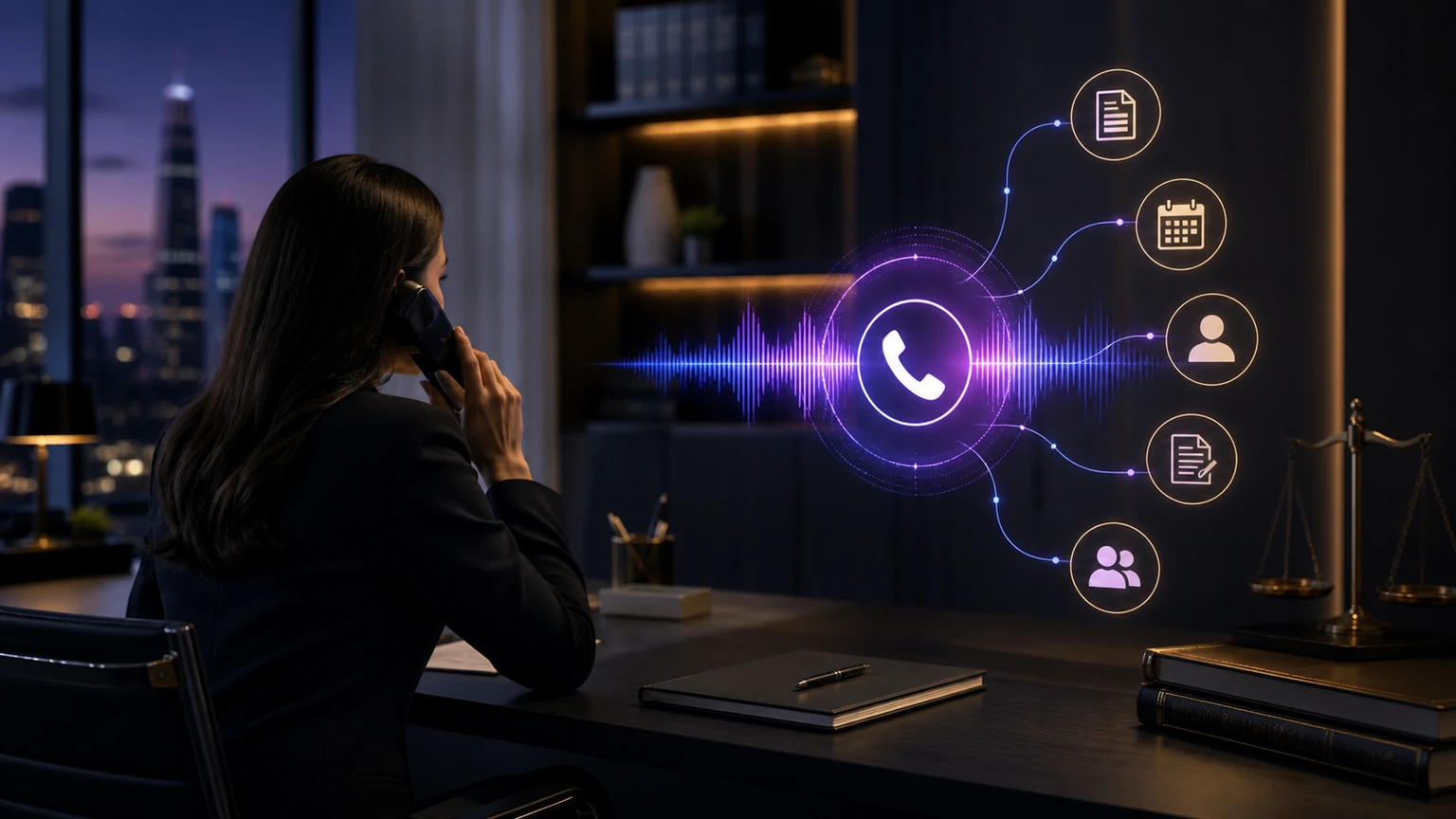
TeleWizard Live Actions connect a conversation to an approved task, such as a calendar booking, record update, or handoff. For legal intake, define the required inputs, permitted action, success message, and fallback before the call reaches production. The examples below describe workflows to configure and verify.
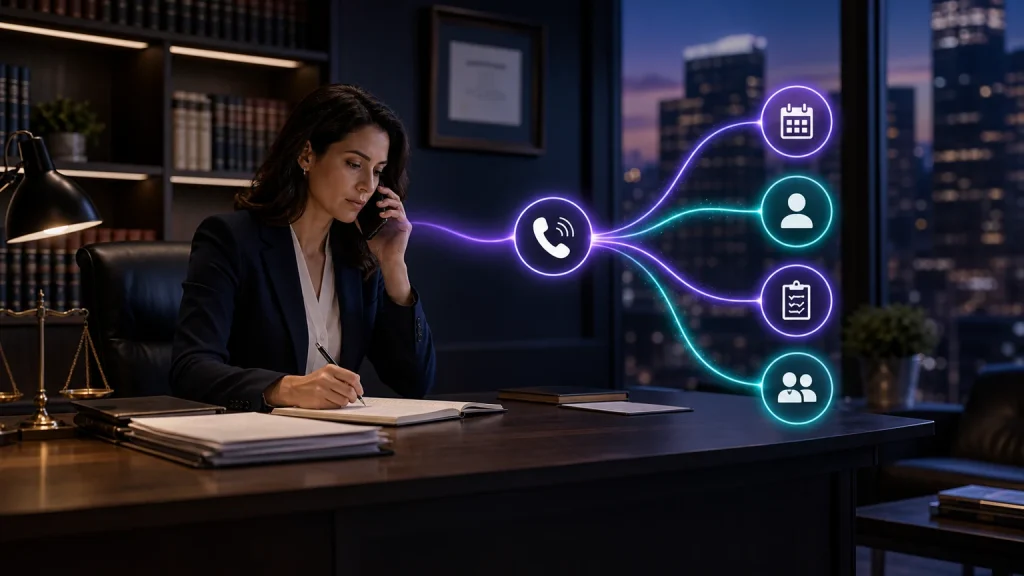
What Are TeleWizard Live Actions for Legal Intake?
Live Actions are configured administrative actions that TeleWizard may perform during an enabled phone or messaging conversation. The phrase does not mean unrestricted access to a firm’s software. It means that, after the caller provides the required approved information and the relevant conditions are met, TeleWizard can attempt a defined action through the connected workflow.
Examples include creating or updating a contact, adding notes to a contact or matter, logging a call or intake, checking an approved calendar, booking an eligible consultation, creating a task, sending an enabled confirmation, or attempting a warm transfer with context. The exact objects and capabilities depend on the connected system, selected plan, permissions, implementation, configuration, and current availability.
A useful action has five parts: a clear trigger, minimum required information, permission boundaries, success evidence, and a fallback. “Book the consultation” is incomplete as a specification. A controlled version identifies eligible appointment types, locations, calendars, time zones, duration, buffers, required fields, conflict behavior, confirmation rules, and what happens when the calendar is unavailable.
Six Live Actions That Can Remove Legal Intake Friction
| Action | Minimum design questions | Success evidence | Fallback |
|---|---|---|---|
| Create or update a contact | What matching fields prevent duplicates? Which fields may be written? | Correct record ID and approved fields returned | Preserve minimum data, flag uncertainty, and assign review |
| Add intake notes or a call log | Which record receives the note? What format and source label apply? | Expected note or log appears on the correct object | Create a monitored task with the approved summary |
| Book a consultation | Which calendar, appointment type, eligibility rule, time zone, and buffer? | Confirmed event ID with correct participants and time | Offer approved alternatives or create a scheduling task |
| Create and assign a task | Who owns it? Which priority and due rule apply? What context is needed? | Task ID, assignee, due rule, and source are visible | Use the backup queue and notify its owner |
| Attempt a warm transfer | Who may receive it, during which hours, and with what introduction? | The designated person connects and accepts context | Return to the caller and activate the next approved route |
| Send an enabled message | Is consent captured? Is the destination safe? What template is approved? | The channel reports the status required by firm policy | Do not assume delivery; use the next permitted channel or task |
These actions are deliberately administrative. TeleWizard can help move work forward without pretending to be a lawyer. Legal advice, conflict decisions, engagement, deadline conclusions, settlement judgment, document interpretation, and emergency response stay with qualified people and approved firm processes.
Design TeleWizard Live Actions for Legal Intake in Eight Steps
TeleWizard’s fully managed model is valuable here. The implementation team can help map the business process, configure the experience, connect approved systems, test the workflow, launch it, and support improvement. The firm still owns legal judgment, policy approval, user permissions, retention choices, recipient staffing, and acceptance of the resulting work.
Do not begin by asking, “What can the AI do?” Begin with, “What controlled administrative result should this caller receive, and how will we know it happened?” That shift keeps the project focused on completed work rather than a feature inventory.
Map Clio and Lawmatics Records and Acuity Scheduling Actions
TeleWizard integrates with Clio and Lawmatics for legal workflows and with Acuity Scheduling for appointment scheduling, alongside Google Calendar and Outlook connections. The official Clio App Directory corroborates full intake, creating or updating contacts, adding notes to contacts or matters, logging calls and intake, scheduling, warm transfers with introductions, and task assignment. Exact behavior varies by configuration and permission.
Choose a system of record for each object. If contacts may exist in both a CRM and practice-management platform, define matching keys and which system is authoritative. If two calendars can accept the same appointment, define availability, precedence, conflict checks, buffers, time zones, office locations, virtual links, and cancellation behavior. If an action creates a task, define the queue owner and due-time rule.
| System area | Firm decision | Test case | Do not assume |
|---|---|---|---|
| Contacts | Match fields, duplicate rule, permitted updates | Existing caller uses a new phone number or spelling | Every apparent match is the same person |
| Notes and intake | Object, template, source, required and prohibited fields | Caller does not know or declines one answer | A complete-sounding summary contains every required field |
| Calendars | Appointment type, eligibility, duration, buffer, location | Slot disappears during booking or crosses time zones | A displayed time remains available until confirmed |
| Tasks | Owner, priority, due rule, escalation, closure | Primary owner is unavailable or task creation fails | Creating a task means a person reviewed it |
| Transfers | Recipient order, hours, introduction, fallback | First and second recipients do not answer | Dialing or ringing equals a connected transfer |
| Messages | Channel, consent, safe-contact rule, template, status | Carrier rejects delivery or caller changes instructions | Sent means delivered, read, or understood |
The TeleWizard Clio setup guide goes deeper into field mapping, authorization, testing, and ongoing quality control. For cross-system workflow design beyond a single integration, use the legal workflow automation guide.
Treat Attempted, Acknowledged, and Completed as Different States
Every connected action can fail partially. A calendar lookup can succeed while event creation fails. A contact can be created without all intended fields. A transfer can ring without connecting. A message can be accepted by a provider without reaching or being read by the caller. A task can exist without an active owner.
Use explicit states such as not attempted, attempted, acknowledged, completed, declined, uncertain, failed, and assigned for review. Preserve the transaction identifier or system response when available. Tell the caller only what the evidence supports. “I submitted your request for staff review” is safer than “Your lawyer will call you” when no person has accepted the work.
Test failure modes before launch: missing required values, duplicate contacts, malformed phone numbers, unsupported characters, permission changes, expired authorization, calendar conflicts, unavailable transfer recipients, rate limits, slow responses, provider outages, and delivery failures. Re-test after system, workflow, permission, policy, staffing, or model changes.
Add a Field-Dictionary Excerpt and Action Acknowledgement Flow
A Live Action should reference a versioned field contract instead of relying on screen labels. The excerpt below is deliberately small: it shows how a configured action states business meaning, destination, and completion evidence without turning this product guide into the broader legal CRM field-mapping guide.
| Canonical field | Meaning | Destination rule | Completion evidence |
|---|---|---|---|
| person.primary_name | Prospective client’s caller-confirmed name; may differ from caller | Contact/lead name fields with caller relationship stored separately | Destination record ID and read-back value |
| inquiry.practice_area | Firm-approved routing category, not a legal conclusion | Valid destination option ID; preserve “unknown” | Stored option ID and human-readable label |
| appointment.type | Configured consultation class and rules | Allowed calendar/event type only after required fields pass | Event ID, assigned calendar, start time, time zone, and status |
| handoff.owner | Person or queue accountable for an unresolved next step | Valid user/team identifier plus due time | Task ID and accepted/assigned state |
Use four explicit action states. Attempted means the request was sent. Acknowledged means the destination accepted it and returned useful evidence. Verified means the required business state—such as the right appointment and owner—was read back or confirmed independently. Reconciled means a failed or partial action was corrected and the exception was closed.
Do not copy unnecessary prospective-client facts into an email or chat alert. The alert should point authorized staff to the protected source record and include only the minimum detail needed to act. If the contact was created but the appointment failed, resume from the confirmed contact ID rather than replaying the entire workflow and risking duplicates.
Protect Prospective-Client Information and Human Judgment
Limit collection and action scope to the current stage. Give the AI an approved role disclosure and prevent legal conclusions. Define when uncertainty, sensitive facts, threats, self-harm statements, immediate safety needs, deadlines stated by a caller, media calls, complaints, subpoenas, and unusual requests must reach a designated person.
For an immediate U.S. need for police, fire-department, or ambulance assistance, the approved workflow should direct the caller to 911. TeleWizard is not emergency dispatch, medical care, a lawyer, or a deadline calculator. Firms should confirm jurisdiction-specific recording, consent, confidentiality, privilege, retention, supervision, advertising, accessibility, and vendor-management duties with qualified counsel.
ABA Formal Opinion 512 discusses lawyers’ professional responsibilities when using generative AI, including competence, confidentiality, communication, candor, supervision, and fees. It does not certify a product or replace local rules. Apply those duties to the entire workflow: the questions, model instructions, action permissions, system records, human review, vendor terms, and change process.
Use AI Supervisor to Improve Action Design, Not to Invent Proof
TeleWizard’s AI Supervisor can help surface objections, caller friction, missing information, policy deviations, missed booking opportunities, failed actions, and follow-up gaps for human review. It can make review more systematic, but an automated label is not proof of legal compliance, caller sentiment, employee performance, action accuracy, or business impact.
Review a representative sample across caller types, languages, channels, practice areas, business hours, after-hours, completed actions, uncertain outcomes, and failures. Compare the conversation with the actual system record. Look for questions that cause confusion, fields that are frequently missing, duplicate creation, appointment mismatches, transfers that do not connect, messages with uncertain delivery, and tasks without owners.
Use a controlled change process: document the issue, review examples, approve the correction, test it in context, deploy narrowly, monitor, and keep a rollback path. The separate AI Supervisor guide for law firms explains that review-and-improvement loop in detail.
Choose the Next Guide for Your Implementation
TeleWizard Live Actions for Legal Intake FAQs
Can Live Actions make legal decisions?
No. Configure administrative criteria and actions only. Legal advice, conflict decisions, representation, eligibility, merit, value, deadlines, and strategy remain with qualified lawyers and approved firm processes.
Does an attempted action count as complete?
No. Define the system response or human acknowledgment that proves the intended result. Preserve failures and uncertain states, tell the caller only what is known, and assign the fallback.
Which legal systems can TeleWizard connect with?
TeleWizard integrates with Clio and Lawmatics for legal workflows, and with Acuity Scheduling, Google Calendar, and Outlook for scheduling and calendar workflows. Confirm the exact objects, permissions, actions, plan, and implementation in writing.
Choose one Live Action and ask TeleWizard to show its successful result and its failure path. Review the TeleWizard options.
Sources
TeleWizard main website: AI legal virtual receptionist; Clio integration; Lawmatics integration; FAQs; and pricing.
Field-model sources: Clio Developer Documentation: Custom Fields and Lawmatics Help Center: Custom Fields Overview. Exact objects, values, permissions, and behavior remain account- and configuration-specific.
Independent official sources: Clio App Directory; ABA Model Rule 1.18 and Comment [4]; ABA Formal Opinion 512; and 911.gov.